Baking Custom Images for AI Agents
Run any AI agent in a secure VM locally

Last time I showed you how to run NanoClaw in a shell sandbox. That post ended with “install whatever you need and run it.” Which is fine, except then you need a new sandbox and you’re installing the same stuff again. And again. You know the drill.
Turns out Docker Sandboxes has a save command. You set up a sandbox once, snapshot it, and every new sandbox starts from that checkpoint. No more re-installing Java for the fourth time today.
Let me walk you through it. We’ll build a custom template with Java, Maven, and the pi coding agent and wire it so you drop straight into pi when you enter the sandbox.
The Big Idea
The shell sandbox is just an Ubuntu environment. It’s fine. It’s flexible. It’s a pain in the ass to set up every time. What we want is:
Start from the shell sandbox
Install our tools: in this post that’s Java 21, Maven, pi.dev agent.
Configure the shell so entering the sandbox launches pi automatically
Save the whole thing as a reusable template image
Never think about it again or profit as someone as old as me would say
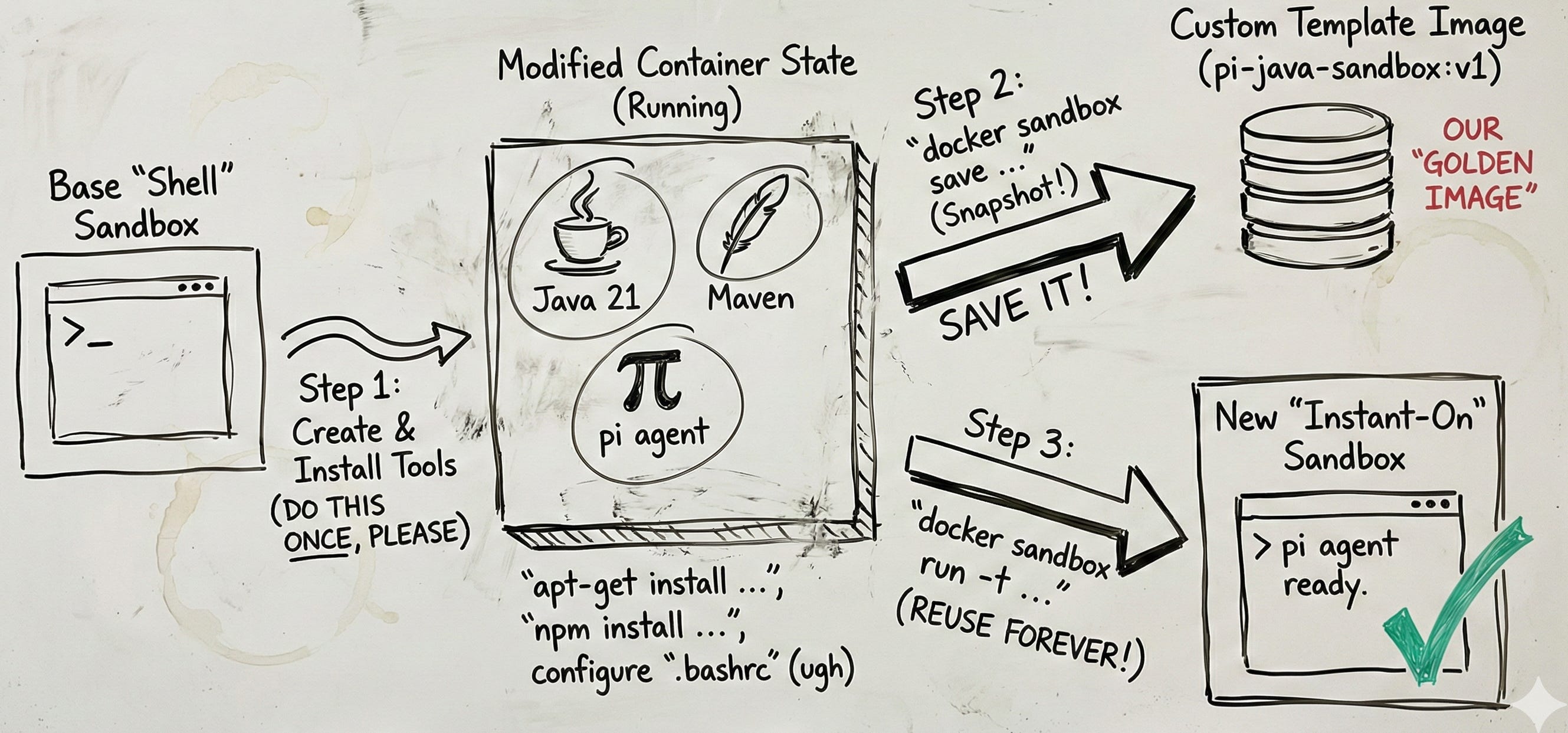
So given you have the setup with everything configured:
Docker Desktop installed and running
Docker Sandboxes CLI (docker sandbox command available with the shell sandbox type, currently available in a nightly build of Docker Desktop)
An API key for your preferred LLM provider (pi supports Anthropic, OpenAI, Google, and others, or any other auth method you use)
Step 1: Create a Shell Sandbox
Pick any workspace directory. It doesn’t matter much, we’re building a template, not doing real work yet:
docker sandbox create --name my-template shell ~/some-workspace
Step 2: Install Your Tools
Now we exec into the sandbox and install everything. We need root for apt and global npm installs:
Java 21 and Maven
docker sandbox exec --user root my-template \
bash -c “apt-get update && apt-get install -y openjdk-21-jdk maven”
Next, install pi coding agent (Node.js 20 is already in the shell template)
docker sandbox exec --user root my-template \
bash -c “npm install -g @mariozechner/pi-coding-agent”
Verify everything landed:
docker sandbox exec my-template bash -c “java -version && mvn -version && pi --version”
You should see Java 21, Maven 3.9, and pi 0.52 (or whatever’s current). Good enough.
Step 3: Auto-Launch pi on Entry
And now, the part that makes this not feel like an ugly hack.
When you docker sandbox run a shell sandbox, it executes bash -l, a login shell. That shell sources .bash_profile, which sources .bashrc. So if we put exec pi at the end of .bashrc, bash immediately replaces itself with pi. When you exit pi, the sandbox session ends. Clean.
The [[ $- == *i* ]] guard ensures this only happens for interactive shells. Your docker sandbox exec commands still work normally.
docker sandbox exec my-template bash -c ‘cat >> ~/.bashrc << ‘\’‘EOF’\’‘
# Auto-launch pi coding agent in interactive shells
if [[ $- == *i* ]] && command -v pi &> /dev/null; then
exec pi
fi
EOF’
That’s it. Three lines in .bashrc.
Step 4: Save the Template
Now snapshot the whole thing into a Docker image:
docker sandbox save my-template pi-java-sandbox:v1
This commits the container’s filesystem: every installed package, every config file - into a regular Docker image and loads it into your host Docker daemon. It takes a few seconds.
What gets saved:
All installed packages (Java, Maven, pi, their dependencies)
Configuration files (.bashrc, anything in /etc)
The entire root filesystem state
What does not get saved:
Your workspace files. Those are bind-mounted at runtime, so you can run this sandbox template in any directory.
Step 5: Use It
From now on, any new sandbox can start from your template:
docker sandbox run -t pi-java-sandbox:v1 shell ~/my-java-project
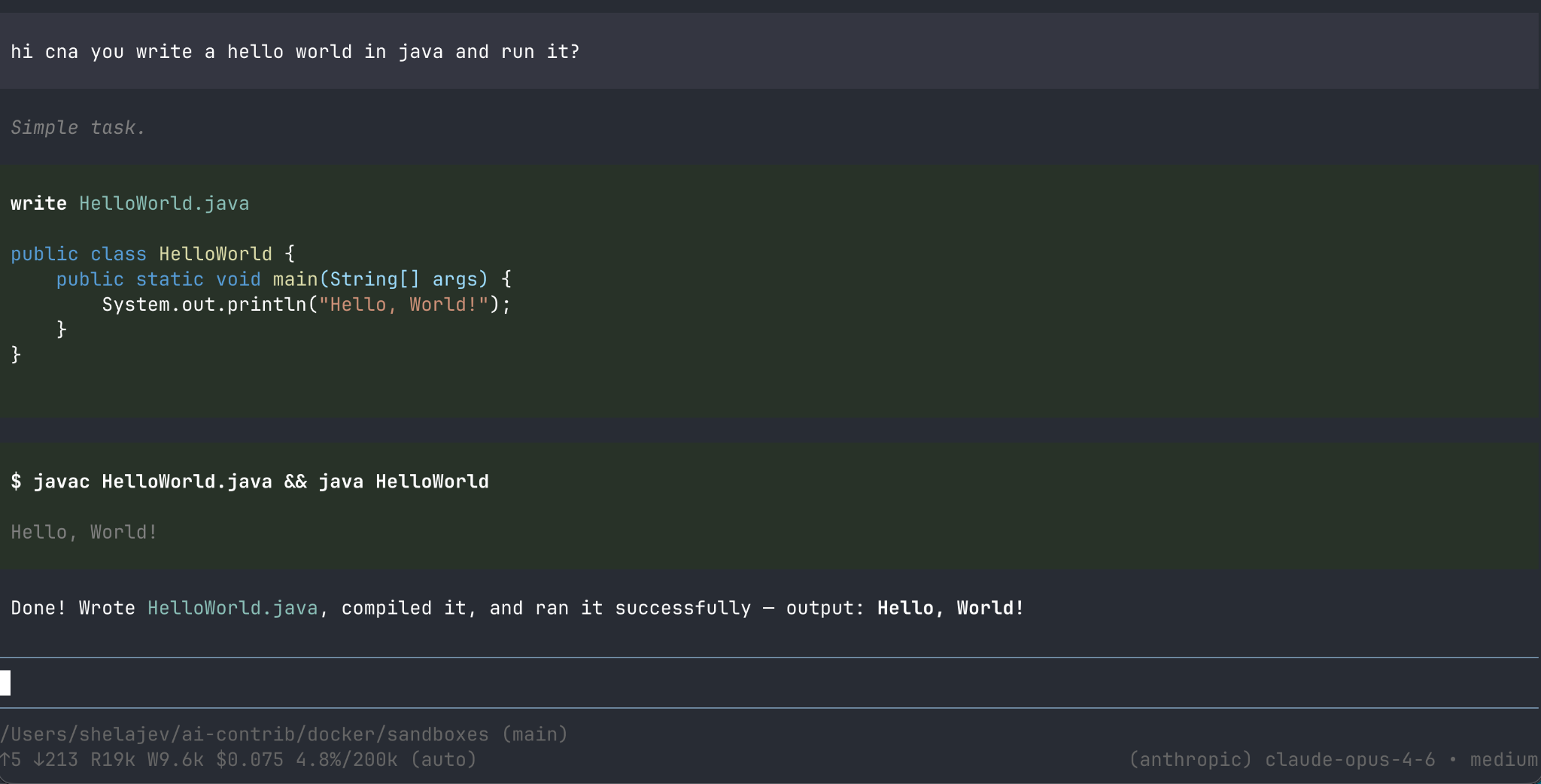
That’s it. The sandbox boots, bash starts, .bashrc fires, and you’re in pi with Java and Maven ready to go. Ask it to write a Spring Boot app, run mvn test, whatever you need.
The -t flag overrides the default shell template image with your custom one. The shell agent type still handles the sandbox lifecycle; your image just provides a better starting point.
Here’s mine:
Sharing Templates
Since docker sandbox save produces a standard Docker image, you can push it to any registry:
docker tag pi-java-sandbox:v1 myregistry.io/pi-java-sandbox:v1
docker push myregistry.io/pi-java-sandbox:v1
Your teammates pull it and run the same command. Everyone gets the same environment.
You can also save to a tar file if you prefer:
docker sandbox save my-template pi-java-sandbox:v1 --output ~/pi-java-sandbox.tar
What Else Could You Build?
The pattern works for any combination of tools and agents:
Python ML sandbox: Install conda, PyTorch, and your preferred agent. Auto-launch into it.
Rust sandbox: Install the Rust toolchain, cargo, and Claude Code. Save it.
Full-stack sandbox: Node.js, PostgreSQL client, Terraform, and whatever agent you like.
Ops sandbox: kubectl, helm, aws-cli, and an agent for infrastructure work.
The shell sandbox is the blank canvas. docker sandbox save is your brush. Install what you want, wire up the entry point, snapshot it, share, move on.
Hi, May I ask which docker desktop version you are using? Can Ubuntu work?